
naps2 Review - An Honest Long-Term Assessment
Our in-depth naps2 review covers interface, scanning quality, OCR accuracy, performance, file output, limitations and who should use it.
Read article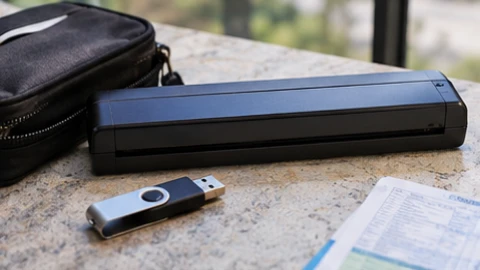
naps2 Portable offers the full naps2 scanning experience without installing anything. It is the ideal choice for shared computers, restricted workplaces and anyone who wants to carry a reliable scanner application on a USB drive.
The portable edition is the same naps2 application packaged as an archive rather than an installer. Instead of writing files to Program Files and entries to the system registry, it runs entirely from the folder in which you extract it. Close the program, remove the folder, and the computer is exactly as it was before.
Use a clearly named folder for the application, profiles and output files, and keep a separate backup of settings you rely on. Check that the host computer has a compatible scanner driver before a scanning session.
Before updating a portable copy, read the current release instructions and preserve your existing configuration. Test a scan after the update so you can confirm that the scanner, profile and output folder still work as expected.
Functionally, nothing is lost. naps2 Portable scans through the same drivers, supports the same profiles, performs the same OCR and exports to the same formats as the installed version.
Two portable versions are commonly used. the project maintainer publishes an official portable archive for Windows alongside each release: a ZIP file that you extract and run. In addition, PortableApps.com maintains naps2 Portable in its own format, which integrates with the PortableApps platform menu and its automatic updater.
Both run the genuine naps2 application. The official archive is the simplest option; the PortableApps edition is convenient if you already use that platform to manage a collection of portable tools.
D:\Tools\naps2 or a folder on your USB drive.NAPS2.exe.Avoid running the program directly from inside the ZIP file without extracting it, as settings cannot be saved there.
Profiles, preferences and OCR language data are saved inside the portable folder rather than in your Windows user profile. This is what makes the edition genuinely portable: copy the folder to another computer and your configuration travels with it.
A practical consequence is that the folder must be writable. If you place naps2 Portable on a read-only network share or a write-protected drive, it will start but will be unable to save changes. A normal USB stick or a folder in your Documents directory works perfectly.
Although naps2 itself needs no installation, your scanner still requires its driver on each computer. naps2 communicates with hardware through WIA, TWAIN or ESCL, and those interfaces are provided by the operating system and the manufacturer’s driver.
Fortunately, Windows includes generic WIA drivers for many scanners, and most network multifunction printers support ESCL without any additional software. If a scanner does not appear in naps2 Portable on a new machine, the missing piece is almost always the driver rather than naps2.
USB flash drives vary enormously in speed. On an inexpensive stick, naps2 Portable may take a few seconds longer to start and save files. For the best experience, use a USB 3 drive, save scanned documents to the computer’s local disk rather than the stick, and keep only the OCR languages you actually need, since each language file occupies several megabytes.
To update the official archive, download the newer version, extract it and copy your existing data folder into the new location, or simply extract the new files over the old ones after closing naps2. If you use the PortableApps edition, the platform’s updater handles this automatically. Either way, check the release notes for any changes to settings before replacing a configuration you rely on.
Many organisations restrict software installation to protect their networks, and naps2 Portable fits comfortably within such policies in most cases, because it changes nothing outside its own folder. Nevertheless, it is courteous and sensible to check your employer’s acceptable-use policy before running any portable application at work. Some organisations use application-control tools that block unrecognised executables regardless of where they are stored.
If portable software is permitted, store the folder in your Documents or OneDrive directory so that it is backed up along with your other work. Your profiles will then follow you to any company computer on which you sign in.
For technicians and frequent travellers, a well-organised USB drive is invaluable. A suggested structure is:
USB:\Tools\naps2\        (portable application)
USB:\Tools\Drivers\      (common scanner driver installers)
USB:\Scans\             (temporary output, cleared regularly)
Keeping a few widely used driver installers beside naps2 Portable means you can solve the most common problem – a missing driver – on the spot. Remember to clear the Scans folder after transferring files, particularly if the documents are confidential, and consider an encrypted USB drive for added protection.
If settings are not saved between sessions, the folder is probably read-only or naps2 was launched from within the ZIP file; extract it to a writable location. If Windows displays a security warning on launch, right-click the ZIP before extracting, open Properties and select Unblock, which removes the internet-origin marker from every file at once. If the scanner is missing, install its driver on the host computer or use ESCL for a network device.
Because naps2 Portable keeps its data in its own folder, it leaves very little trace on a host computer. This is valuable on shared or public machines, where you may not want your profiles, recent file locations or OCR settings stored in someone else’s user account. Be aware, however, that the scanned files themselves remain wherever you save them, so choose your USB drive or a private folder as the output location rather than the host computer’s Desktop or Documents folder.
The GPL licence permits you to copy naps2 Portable freely, install it on as many drives as you wish and share it with colleagues. There is no activation, serial number or device limit. Organisations can therefore standardise on a single pre-configured portable folder and distribute it widely without any licensing paperwork, which is rarely possible with commercial scanning software.
naps2 Portable can also serve as a lightweight deployment method. An administrator prepares one folder with agreed profiles, the required OCR languages and suitable default save locations, then places it on a network share or distributes it through a file-sync service. Each user copies the folder locally and runs it. Because nothing is installed, there are no installer permissions to manage, no registry changes to audit and nothing to uninstall later. Updating the team is equally simple: replace the shared folder with a newer version and ask users to refresh their copy.
If you use one computer and have administrator rights, the installed edition is slightly more convenient: it integrates with the Start menu, registers file associations and updates through the installer. In every other situation – managed devices, shared machines, multiple PCs or a technician’s toolkit – naps2 Portable is the more flexible choice, and it sacrifices nothing in capability.
No. It runs from any writable folder without installation, so standard user accounts can use it.
Only in packaging. The features, OCR and export options are identical.
Yes. Extract it to the drive and run NAPS2.exe; your profiles are stored on the drive as well.
The portable archive is a Windows package. On macOS, the standard application bundle can be run from any folder.
Yes. OCR works exactly as in the installed version, and downloaded language data is stored in the portable folder.
Yes. Copy your existing data folder into the new version, or extract the update over the old files after closing naps2.
naps2 Portable delivers the complete naps2 experience with none of the commitment of an installation. It respects locked-down computers, travels with you on a USB drive and keeps your profiles intact wherever you go. For technicians, students and anyone working on shared machines, it is quite simply the most practical way to scan.
Download naps2 Portable (Windows x64)
Our in-depth naps2 review covers interface, scanning quality, OCR accuracy, performance, file output, limitations and who should use it.
Read article
A clear walkthrough on how to install the naps2 scanner software on Windows, macOS and Linux, configure a profile and complete your first scan.
Read article
Is there a naps2 online version? Learn why naps2 is a desktop app, what the ESCL web-scan sample is, and the best ways to scan from a browser or phone.
Read article